Visible area
Exactly what is on screen right now, at your real device pixel ratio — the fastest shot there is.
Alt+Shift+SFree · Private · 100% Local
Capture the visible area, the whole scrolling page, a region you draw or an exact size — then crop, annotate and blur right where you took it, and export to PNG, JPG, WEBP or PDF. Nothing is ever uploaded.
v1.0.1 · Chrome 102+ · Also works on Edge, Brave, Arc, Vivaldi and Opera
4 capture modes · 4 export formats · 10 annotation tools · 27 languages
Grabbing the image is the fast part. What eats the time is everything after it: the page is longer than the screen, so you take five shots and stitch them by hand; a client's email address is sitting in the corner, so you open an image editor to blur it; the report wants a PDF, so you convert. ScrnCap keeps that whole loop inside the tab you are already in.
The usual loop
Print Screen → paste into an editor → crop → mark up → save → convert to PDF → find the file again. Six apps for one screenshot, repeated a dozen times a day.
With ScrnCap
One shortcut captures exactly the area you meant — the full scrolling page included. Annotate in the same window, then export as PNG, JPG, WEBP or PDF, copy it to the clipboard, or send it straight to the printer.
Capture modes
Most extensions do one of these. ScrnCap does all four, each with its own shortcut, so you never switch tools because the page did not fit.
Exactly what is on screen right now, at your real device pixel ratio — the fastest shot there is.
Alt+Shift+SScrnCap scrolls the page for you and stitches the pieces into one tall image, sticky headers handled.
Alt+Shift+FDrag a box over anything on the page. The overlay shows live dimensions so you can hit an exact crop.
Alt+Shift+RCapture at 1920×1080, 1280×800 or any preset you add — handy for store listings and design specs.
Save it, copy it to the clipboard, or push it to the system print dialog — no round trip through a file manager.
Features
Everything you would otherwise do in three apps, done in the tab you are already looking at — and none of it needs a network connection.
Visible area, full scrolling page (stitched automatically), a region you drag out, or a fixed size like 1920×1080 with your own presets alongside. Alt+Shift+S, F and R fire the first three without opening anything, and what happens next is up to you: preview, jump straight into the editor, download immediately, or land on the clipboard.
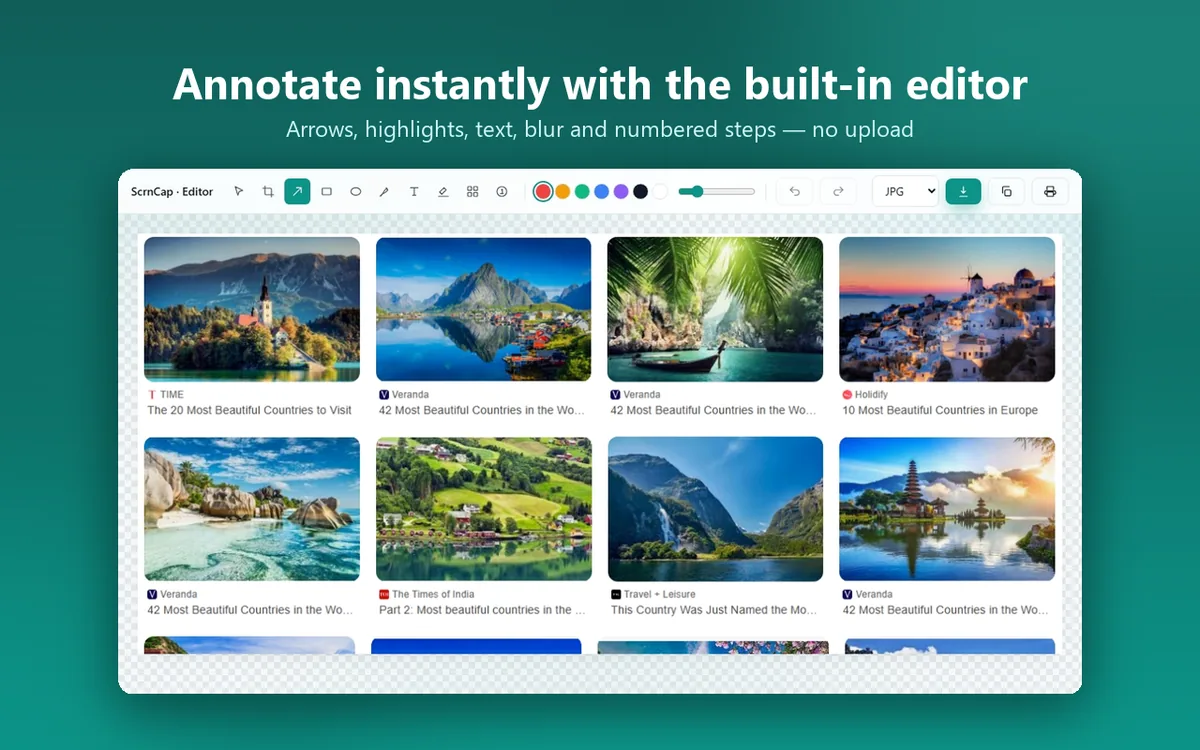
Crop, arrows, rectangles, ellipses, a freehand pen, text, highlighter, mosaic and blur for anything sensitive, plus numbered step markers for walkthroughs — all with undo and redo. It opens instantly because it is part of the extension, not a website you have to upload to.
Pick the format the destination actually wants — a lossless PNG for a bug report, a small JPG for chat, WEBP for the web, or a PDF for the client. Or skip the file entirely: copy to the clipboard, or send it to the system print dialog.
Select several open tabs and ScrnCap works through them in sequence, then hands you a ZIP archive or one multi-page PDF. Documenting a whole flow stops being a twenty-minute chore.
Copy the shot to the clipboard and open ChatGPT, Claude or Gemini in a new tab, ready for Ctrl+V. Useful for "what does this error mean" and "rewrite this page's copy" — and nothing is sent unless you paste it yourself.
Alt+Shift+P opens ScrnCap, S grabs the visible area, F the full page, R a region. All four can be reassigned at chrome://extensions/shortcuts, and right-click capture entries are there when you would rather use the mouse.
Capturing, annotating and exporting all run inside your browser — no sign-in needed, no analytics, no tracking. Your screenshots never leave your device, so pages behind a login are as safe to capture as any other. An account is optional and only used to unlock Pro.
Inside ScrnCap
The popup to take the shot, the editor to fix it up, and batch mode when one tab is not enough.
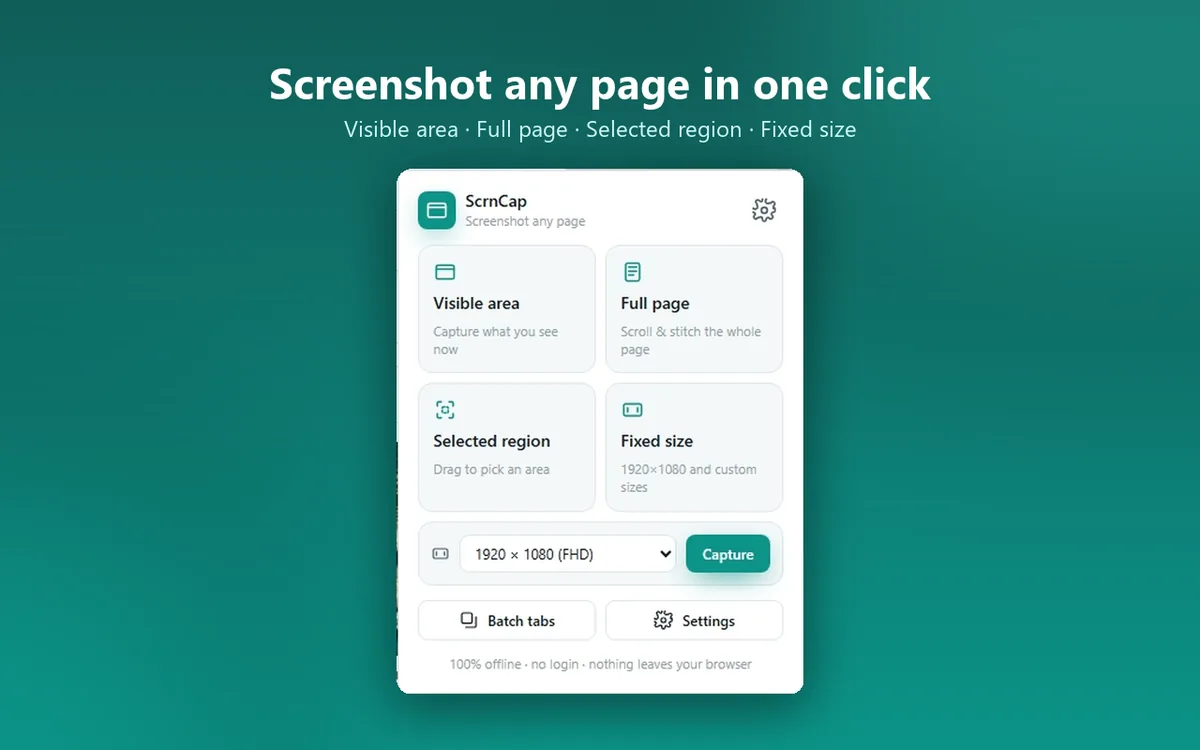
The popup lists all four capture modes with their shortcuts, and remembers what should happen after the shot: open a preview, jump into the editor, download it, or copy it to the clipboard. Set it once and most captures become a single keystroke.
Crop the noise away, point at what matters with an arrow, drop numbered markers for a walkthrough, and mosaic or blur the email addresses and account numbers that were never meant to be in the shot. Undo and redo the whole way — the original capture is never overwritten until you export.
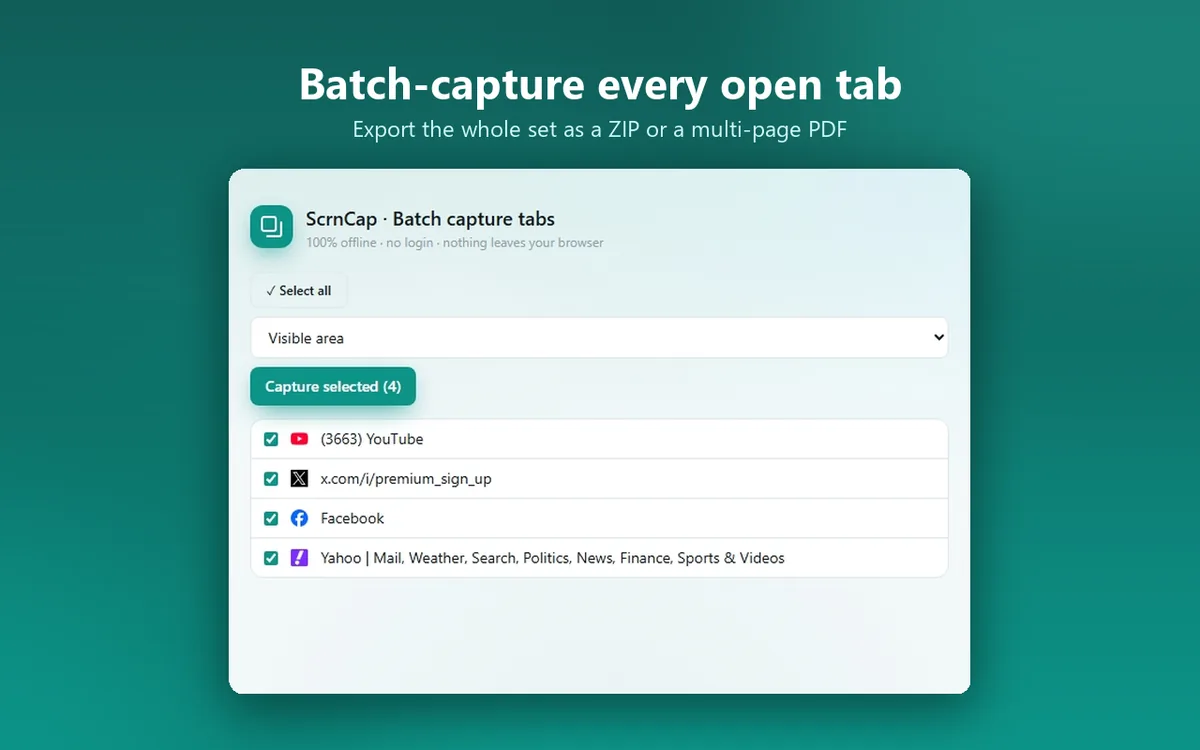
Tick the tabs you need and ScrnCap captures them one after another without you switching windows, then packages the result as a ZIP of images or a single multi-page PDF. Archiving a checkout flow or a set of dashboards takes one action instead of twelve.
Annotation
The editor opens in a tab of its own, right after the capture. No upload, no sign-in, no watermark.
Every action is undoable, and the untouched capture stays in memory until you export — so trying something out costs you nothing.
Permissions
A screenshot tool has to be able to read the page you are on, so ScrnCap asks for host access. Here is exactly what each permission does, in plain words, instead of buried in a policy.
| Permission | What it is used for |
|---|---|
| activeTab | Grants one-time access to the current tab when you trigger a capture, so its pixels can be read. |
| scripting | Injects the measurement, scrolling and selection-overlay helpers on demand during a capture. There is no persistent content script. |
| tabs | Reads tab titles and URLs and switches the active tab while batch-capturing several tabs in sequence. |
| storage | Saves your settings and hands the captured image to the local preview and editor pages. |
| unlimitedStorage | Lets a tall full-page capture or a batch of them be held locally without hitting the small default quota. |
| contextMenus | Adds the right-click capture entries on the page. |
| downloads | Saves the exported image or PDF to your Downloads folder. |
| <all_urls> | Required so a capture works on whatever page you are on — full-page, region and fixed-size modes have to read and scroll the current page. It is used only when you start a capture. |
ScrnCap never watches the pages you visit, loads no remote code, and sends nothing anywhere. Host access is what makes capturing possible, not a licence to read your browsing.
Screenshots never leave your device. An account is optional and only used to unlock Pro — and even with Pro, no image is ever uploaded. That is the whole point for anyone capturing an internal dashboard, a bank page or a client's site: capture, annotation and export all happen in your browser. This website runs no analytics and no third-party scripts, and it only sets cookies to keep you signed in if you choose to sign in.
Read the full privacy policyGuides
Short, practical walkthroughs: what Chrome can do on its own, where it falls short, and how ScrnCap fills the gap.
FAQ
If yours is not here, email me — the address is on the support page.
Install ScrnCap, press Alt+Shift+F on the next page you need, and see how much of your screenshot routine just disappeared.
Free · No account · Works offline